
Learn how to contribute to Sefaria's test coverage with this comprehensive guide.
Contributing Playwright Tests to Sefaria: A Volunteer Guide
Welcome! Thank you for your interest in contributing to Sefaria's test coverage. We are so grateful to have such an enthusiastic community of developers who help us develop and test our technology.
What Are Playwright Tests?
Simply put, these tests keep Sefaria from bugs. It's easy to contribute to our playwright tests and every contribution makes our digital library more resilient. Interested in which tests we have in the works? You can see the whole repository at Sefaria Playwright Tests on Github.
Getting Started
This tutorial will explain how to set up your local environment to write Playwright-based end-to-end (E2E) tests for Sefaria. It will also explain how to contribute new tests and submit your changes through a pull request.
Table of Contents
1. Prerequisites
Before beginning, ensure you have the following installed:
Node.js (v18+ recommended)
Python (3.10+) This is only necessary if you want to run the full Sefaria Library app locally.
Docker This is necessary for running local services such as Elasticsearch, Redis, or MongoDB
GitHub (make sure you have an account)
Please note: While Playwright tests are written in TypeScript, Sefaria’s backend is powered by Django (Python). Therefore, in order to run the Sefaria Library app locally and simulate full app behavior in your tests, you will need Python. If you are testing frontend behavior against a live Cauldron or staging server, only Node.js is required.
2. Claim a Feature from the Github Issue Tracker
Sefaria uses Github Issues to track which features or areas still need Playwright test coverage. Before writing a test, please browse Sefaria's Playwright GitHub Issues list to see which features still need testing.
How to Claim an Issue in Three Easy Steps
- Find an open issue you'd like to contribute to. In order to be sure the issue is available for testing, ensure it does not yet have an assignee noted and it's status is not designated In Progress. In addition, make sure you're selecting a feature with a complexity levels that matches your comfort level.
- Comment on the issue. For example, you might post: "I would like to volunteer to create these tests"
- Wait for a maintainer to assign you the issue. This process usually takes 1-2 business says.
Note: GitHub only allows maintainers or collaborators with write access to assign issues.If you're not a collaborator yet, you won’t be able to assign yourself. Instead, add a comment on the issue that you would like to write a test for and wait for the assignment to be approved.
Once you're assigned, you can:
- Create a new branch in your local repo.
- Write your test(s).
- Open a pull request referencing the issue (e.g.,
Fixes #23in your PR description).
3. Set Up the Environment
Follow the Sefaria setup instructions to get the backend and frontend running locally.
If you run into issues, check the README.md or fill out this form to contact Sefaria's engineering team.
4. Fork and Clone the Sefaria Repository
Fork the Repository
- Go to https://github.com/Sefaria/Sefaria-Project
- Click "Fork".
Forking creates your personal copy of the Sefaria repository on GitHub. This allows you to make changes without affecting the main project.
Clone Your Fork Locally
git clone https://github.com/YOUR_USERNAME/Sefaria-Project.git

cd Sefaria-Project
This downloads your fork to your computer so you can work on it using your local development tools.
Take some time to familiarize yourself with the repository, specifically the e2e-tests folder and its contents. Review the page objects, existing test files, and helper files to understand the structure.
Add the Main Repo as a Remote
git remote add upstream https://github.com/Sefaria/Sefaria-Project.git
This links your local copy to the original (main) Sefaria repo, allowing you to fetch updates or feature branches from it.
Fetch the Relevant Branch
If the feature you're writing tests for is still in development, pull it from the developer's branch.
git fetch upstream

git checkout -b test-feature-name upstream/dev-feature-branch
Replace test-feature-name with something descriptive of the test you're adding, and dev-feature-branch with the actual name of the developer’s branch.
If the feature is already complete and merged into master, (which will likely be the case):
git fetch upstream

git checkout -b test-feature-name upstream/master
This creates your test branch based on the latest code in master.
5. Set Up Playwright
Install Playwright and its test runner like this:
npm install playwright@latest

npm install @playwright/test

npx playwright install
Verify your setup by running existing tests like this:
npx playwright test
6. Write Your Tests
Sefaria's Playwright tests live under the e2e-tests/tests directory.
Each test file should:
- Be scoped to a single feature or user interaction
- Use a consistent naming pattern (e.g.,
newTestFeature.spec.ts) - Leverage the Page Object Model already implemented in
e2e-tests/pages
Basic Test Structure
The basic form of a Sefaria Playwright test is:
test('Description of what is being tested', async ({ context }) => {

  // Setup, actions, and assertions

});
Key Features:
-
Name: Give each test a clear name describing the user action and expected behavior
-
async ({ context }): All Playwright tests are asynchronous because they interact with a browser.contextsimulates a private browsing session -
Actions: Simulate real user actions (typing, clicking, etc.), encapsulated in Page Object methods
-
Assertions: Use
expect()to verify the app responded correctly
Finding the Right Locators
When writing tests, use Playwright's best practices for locators:
-
Prefer role-based locators that are accessible and user-friendly:
// Good - uses role and accessible name await page.getByRole('button', { name: 'Submit' }).click(); await page.getByRole('textbox', { name: 'Search' }).fill('Genesis'); -
Use test IDs when role-based locators aren't sufficient:
await page.getByTestId('language-selector').click(); -
Avoid CSS selectors and XPath when possible:
// Avoid this approach

await page.locator('.complex-css-selector').click();
Finding Locators:
-
Inspect the HTML: Use browser developer tools to examine the page structure
-
Use Playwright Codegen: Run
npx playwright codegento generate locators automatically -
Check accessibility: Ensure your locators work with screen readers
Common Imports
Your test files will typically need these imports:
import { test, expect } from '@playwright/test';

import { goToPageWithLang } from '../utils';

import { LANGUAGES } from '../globals';

import { PageManager } from '../pages/pageManager';
Add additional imports as needed based on your specific test requirements.
You may find that you want to add helper methods or certain variables to make your tests more concise and efficient. You are welcome and encouraged to do so! If you need assistance choosing the correct format or location for these additions, please reach out to Sefaria's engineering team.
You're all set! Now that we've covered the basics, let us take a deep dive into the process of choosing, developing, and pushing your Playwright test.
7. Example: Choosing and Creating a New Test
Let's walk through creating a test for "Table of Contents (ToC) Language Control" (Issue #16).
After browsing the list of available features to test on Sefaria's Github Issues, select "Table of Contents (ToC) Language Control" (Issue #16).
Click on the issue and add a comment. In this case, the comment is "I would like to volunteer to create these tests."
This issue shows the following information:
Title: Verify language display in ToC based on content language.
Test:
- Set contentLanguage to translation.
- Open the Table of Contents for a Hebrew translation text.
- Verify that ToC items are displayed in English.
- Set contentLanguage to source.
- Open the Table of Contents for an English source text.
- Verify that ToC items are displayed in Hebrew.
Once a Sefaria team member has assigned the issue, the testing can begin.
Create the Test File
Once assigned to the issue, it's time to create the test file. This can be done either through the terminal or manually.
The standard naming convention for a Playwright test file consists of the feature you are testing, followed by .spec.ts. This example is about testing language control for the Table of Contents. Therefore, the test file will be namedtoc-language-control.spec.ts.
When using the terminal, you'll see something like this:
touch e2e-tests/tests/toc-language-control.spec.ts
Alternatively, you can create the file manually in VS Code. To do so:
- Open the Explorer sidebar (Ctrl+Shift+E or Cmd+Shift+E).
- Right-click the
testsfolder. - Click "New File".
- Type
toc-language-control.spec.tsand press Enter.
Add Imports
Your list of imports will include common Playwright commands, the Sefaria Page Object Models relevant to the feature you are testing, and valuable functions or variables from helper files such as utils.ts or constants.ts.
If the Page Object Model does not yet exist for the page you are testing, you will need to create one. For some tests, like this one, we will use the PageManager available in the pages folder, which holds all the different pages as variables. Here are our imports:
import { test, expect } from '@playwright/test';

import { goToPageWithLang } from '../utils';

import { LANGUAGES } from '../globals';

import { PageManager } from '../pages/pageManager';
If you see that you need to add more import statements as you continue to write your tests, please do so.
Write the Tests
Let's take a look at the two tests we developed to verify language display for the Table of Contents of a given text.
test.describe('Content Language affects Table of Contents display correctly', () => {

  test('ToC displays English when contentLanguage is "Translation"', async ({ context }) => {
    const page = await goToPageWithLang(context, '/Genesis.1', LANGUAGES.EN);
    const pm = new PageManager(page, LANGUAGES.EN);
    const sourceTextPage = pm.onSourceTextPage();
    await sourceTextPage.setContentLanguage('Translation');
    // Click on translated text to open sidebar - using accessible locator
    await page.getByRole('region', { name: 'text content' })
							.getByText('In the beginning').first().click();
    await sourceTextPage.openTableOfContents();
    // Verify English display using accessible locators
    await expect(page.getByRole('heading', { name: 'Chapters' })).toBeVisible();
    await expect(page.getByRole('link', { name: '1' }).first()).toBeVisible();
  });

  test('ToC displays Hebrew when contentLanguage is set to "Source"', async ({ context }) => {
    const page = await goToPageWithLang(context, '/Genesis.1', LANGUAGES.EN);
    const pm = new PageManager(page, LANGUAGES.EN);
    const sourceTextPage = pm.onSourceTextPage();
    await sourceTextPage.setContentLanguage('Source');
    // Click on Hebrew text to open sidebar
    await page.getByRole('region', { name: 'text content'})
							.locator('[lang="he"]').first().click();
		await sourceTextPage.openTableOfContents();
    // Verify Hebrew display
    await expect(page.getByRole('heading', { name: 'פרקים' })).toBeVisible();
    await expect(page.getByRole('link', { name: 'א' }).first()).toBeVisible();
  });

});
The first test:
- Goes to the first chapter of Genesis (/Genesis.1) with the interface language set to English.
- Tells the page to display the translation (i.e., the English version of the Hebrew text).
- Clicks on a piece of the translated text to open the sidebar.
- Opens the Table of Contents (ToC) for the text.
- Checks that the ToC contains the word “Chapters” (in English), and the section number is shown as 1 (not in Hebrew letters).
The second test checks the opposite case, i.e. the ToC contains the word "פרקים" and uses Hebrew letters to display the chapters rather than numbers.
Understanding the Test Structure
test.describe groups related tests under a common label. It helps with:
-
Organization and readability
-
Shared setup with
test.beforeEach/test.afterEach -
Better test reporting
test.beforeEachandtest.afterEach can be used for shared setup:
test.beforeEach(async ({ context }) => {

  // Setup that runs before each test

});
Use these when:
-
Multiple tests share common setup
-
You want to ensure consistency across tests
-
You're repeating setup code
8. Run and Debug Locally
Running Tests
There are a number of ways to run and debug locally. These include the following options.
Run your specific test file:
npx playwright test toc-language-control.spec.ts
Run with the Playwright UI (recommended):
npx playwright test --ui toc-language-control.spec.ts
Debug interactively:
npx playwright test toc-language-control.spec.ts --debug
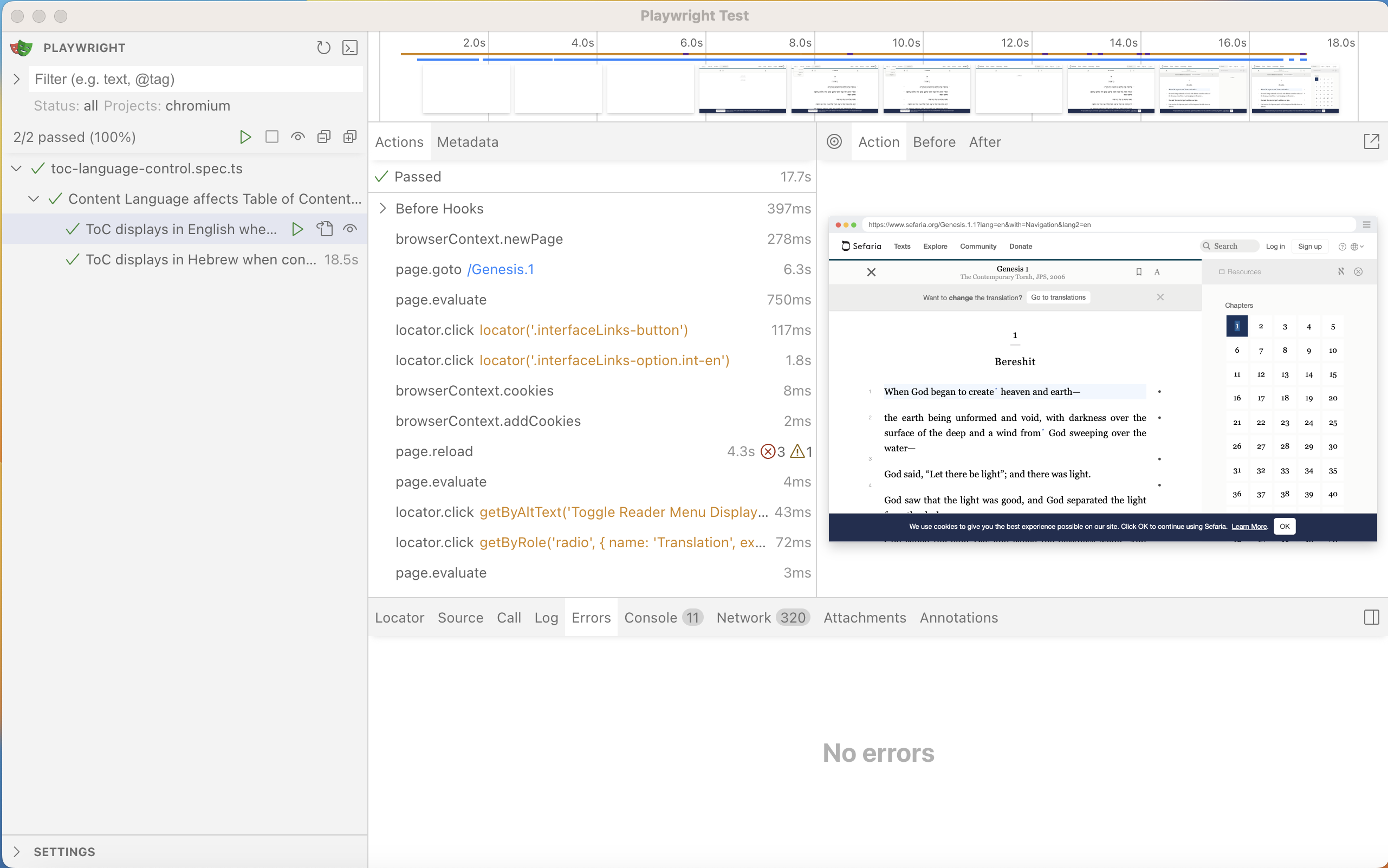
Using the Playwright UI
The UI provides excellent debugging capabilities, such as:
-
Running individual tests or groups
-
Seeing the page state before, during, and after actions
-
Hovering over the timeline to see page changes
-
Viewing errors in the dedicated panel
-
Stepping through test execution
Common Debugging Tips
When tests fail, try one of these options:
-
Check the error message in the UI
-
Verify locators are correct using browser dev tools
-
Ensure elements are visible before interacting
-
Add debugging statements:
await page.pause()
Locator issues:
-
Use
npx playwright codegento generate locators -
Prefer stable locators over brittle CSS selectors
9. Submit Your Contribution
Create Branch and Commit
Create a new branch:
git checkout -b test/toc-language-control
Stage your changes:
git add e2e-tests/tests/toc-language-control.spec.ts
Commit with a descriptive message:
git commit -m "test(ToC): add language control tests [Issue #16]"
Please note: Sefaria strives to use the "Conventional Commits" method when it comes to writing commit messages. Check out this Conventional Commits Cheat Sheet to learn more about it!
Push your branch:
git push origin test/toc-language-control
Open a Pull Request
-
Go to your forked repository on GitHub
-
Click "Compare & pull request"
-
Ensure the base repository is
Sefaria/Sefaria-Projectand base branch ismaster -
Write a clear title and description
-
Include
Fixes #issue_numberorCloses #issue_numberin the description. This will automatically link your pull request to the issue.
Review Process
A Sefaria team member will review your PR. This may take a few days, and we appreciate your patience! Please be responsive to feedback and make requested changes when relevant. Once approved and merged, your test will become part of the automated test suite.
10. Tips for Writing Great Playwright Tests
Best Practices
Be specific: Focus on one behavior or flow per test
// Good - tests one specific behavior

test('User can search for a text', async ({ page }) => { ... });

// Avoid - tests multiple behaviors

test('User can search and navigate and bookmark', async ({ page }) => { ... });
Be clear: Use descriptive names and meaningful assertions
// Good - clear expectation

await expect(page.getByRole('heading', { name: 'Search Results' })).toBeVisible();

// Avoid - unclear expectation

await expect(page.locator('.results')).toHaveCount(1);
Be reliable: Use Playwright's built-in waiting mechanisms
// Good - waits for element to be visible

await expect(page.getByRole('button', { name: 'Submit' })).toBeVisible();

// Avoid - arbitrary waits

await page.waitForTimeout(3000);
Be DRY: Reuse Page Object methods to keep tests clean
// Good - uses page object method

await sourceTextPage.openTableOfContents();

// Avoid - duplicating complex interactions

await page.click('.menu-button');

await page.click('.toc-option');
Locator Strategy
-
Start with role-based locators. These are accessible and stable.
-
Use test IDs. This is especially important when roles aren't sufficient.
-
Examine the HTML. This will ensure full understanding of the page structure.
-
Use codegen. This allows you to generate initial locators and improve them.
-
Test your locators. Check in browser dev tools.
Common Pitfalls to Avoid
-
Flaky waits: Don't use
waitForTimeout()unless absolutely necessary. -
Overly specific locators: Avoid CSS selectors that break easily.
-
Missing assertions: Always verify the expected outcome.
-
Too much in one test: Keep tests focused and atomic.
Troubleshooting Common Issues
Common Test Failures and Recommended Actions
Element not found: Check if the locator is correct and the element exists.
// Debug by checking element existence

console.log(await page.getByRole('button', { name: 'Submit' }).count());
Timing issues: Ensure proper waiting for dynamic content.
// Wait for element to be ready

await expect(page.getByRole('button', { name: 'Submit' })).toBeEnabled();
Language/locale issues: Make sure you're testing in the correct language context.
// Use the language utilities provided

const page = await goToPageWithLang(context, '/Genesis.1', LANGUAGES.EN);
Common Setup Issues and Recommended Actions
Node.js version problems: Ensure you're using Node.js 18.x - 20.x.
Missing dependencies: Run npm install to ensure all packages are installed.
Playwright browsers: Run npx playwright install to install browser binaries.
Additional Resources
Getting Help
Feel free to reach out to Sefaria's engineering team with any questions! We're here to help you contribute successfully.
Thank you for helping build a better Sefaria! Every test you contribute makes our site more reliable and accessible to users around the world.